A quick way to copy the conditions of a DLP rule with PowerShell and the AdvancedRule parameter
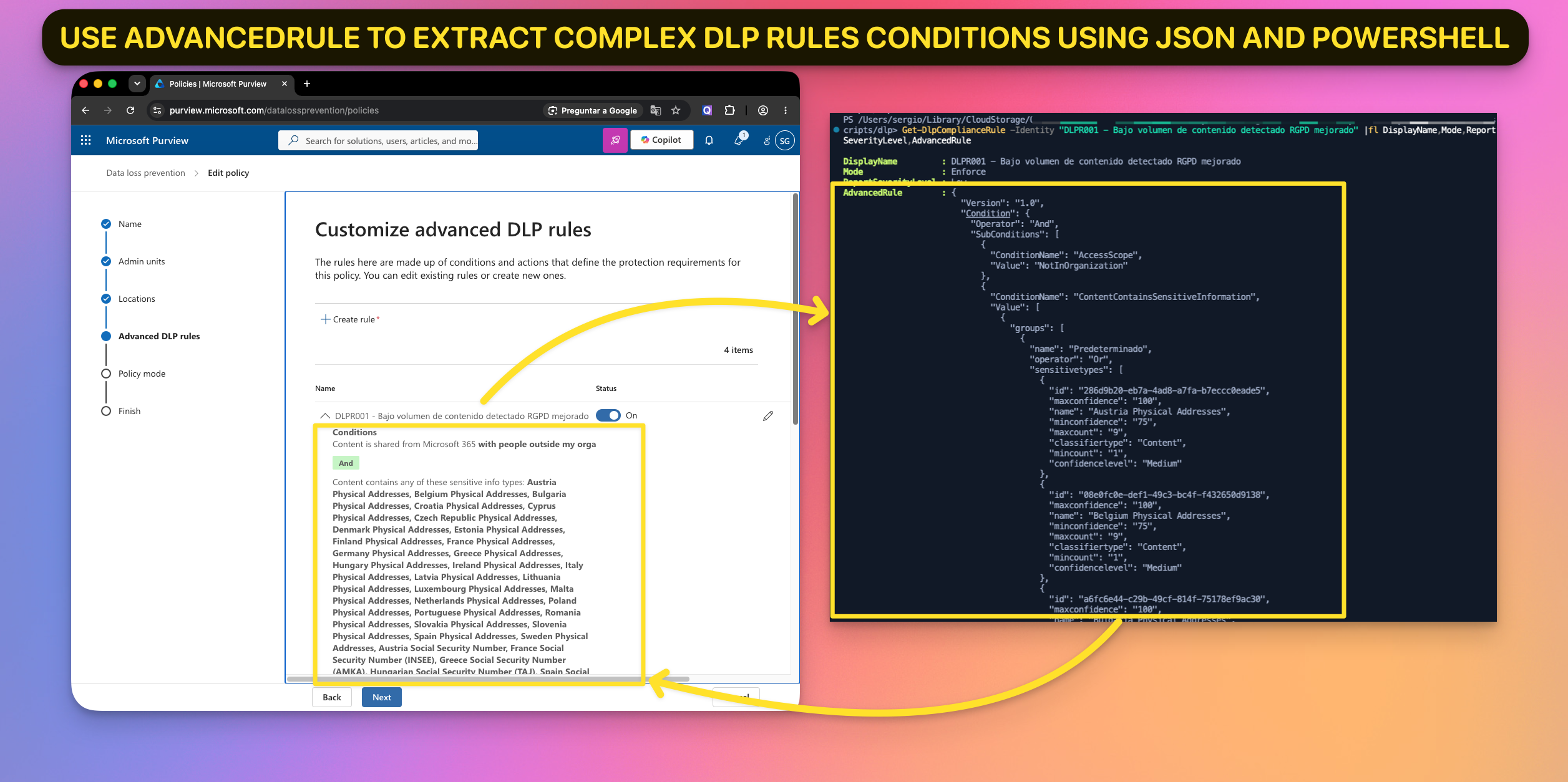
Sometimes the easiest way to build a complex Microsoft Purview Data Loss Prevention rule is not to start from scratch. You may already have a rule whose conditions, classifiers, and nested logic are exactly what you need for a lab, a backup, or a similar deployment in another tenant.
This is where the AdvancedRule property can be very useful.
In this post, I will show you how I extract the condition logic from an existing DLP rule, remove a few properties that can cause portability problems, save the result as JSON, and use it with New-DlpComplianceRule.
This is not a full DLP policy migration method. It is a practical way to reuse the condition tree of a rule. Actions, policy locations, notifications, incident reports, user or group references, and other settings still need to be reviewed and configured separately.
What is AdvancedRule?
Microsoft describes the AdvancedRule parameter as a JSON-based complex rule syntax that supports multiple AND, OR, and NOT operators, including nested groups.
In practical terms, it is a serialized representation of the logic behind conditions such as:
(Credit Card Number OR a custom sensitive information type)
AND content is shared outside the organization
AND NOT sender is a member of an excluded group
Rebuilding this type of logic manually with individual PowerShell parameters can be difficult. Reading the AdvancedRule value from a rule that already works gives us a useful starting point and preserves its nested condition structure.
The AdvancedRule parameter accepts a string containing JSON. We will therefore deserialize that JSON into a PowerShell hashtable, clean it, and serialize it again before passing it to New-DlpComplianceRule.
Before you begin
The DLP cmdlets used here are available in Security & Compliance PowerShell. Connect with an account that has the required Microsoft Purview permissions:
Import-Module ExchangeOnlineManagement
Connect-IPPSSession -UserPrincipalName admin@contoso.com
The examples below use ConvertFrom-Json -AsHashtable, so run them in PowerShell 7 or later.
1. Get the source rule and parse AdvancedRule
You can identify a DLP rule by name or GUID:
$sourceRule = Get-DlpComplianceRule -Identity "DLP RULE NAME OR GUID"

if ([string]::IsNullOrWhiteSpace($sourceRule.AdvancedRule)) {
    throw "The selected rule does not contain an AdvancedRule value."
}

$advancedRuleHash = $sourceRule.AdvancedRule | ConvertFrom-Json -AsHashtable
At this point, $advancedRuleHash is a normal PowerShell object that we can inspect and modify:
$advancedRuleHash | ConvertTo-Json -Depth 30The exact JSON varies depending on the rule. You will normally see a top-level version and a condition tree containing operators, subconditions, classifier groups, sensitive information types, confidence levels, and instance counts.
2. Keep an untouched backup
Before changing anything, I prefer to save the original value. This gives me an exact point-in-time copy for troubleshooting or comparison:
$sourceRule.AdvancedRule |
    Set-Content -Path ".\advancedrule-original.json" -Encoding utf8
The original file is the better artifact for a backup. The cleaned file that we create next is intended to be a more portable starting point.
3. Remove properties recursively
In JSON exported from existing rules, I have found properties such as rulePackId, maxconfidence, and minconfidence. For my reuse scenario, I remove them before creating the destination rule:
rulePackIdis a unique identifier for a custom or built-in Sensitive Information Type (SIT) rule package. It links DLP conditions to exact classification schemas. If you try to add it to a new rule manually you’ll get an error likeUnable to create advanced rule YOUR-RULE-NAME. Error: The property name 'rulepackid' specified in sensitive information is invalid.maxconfidenceandminconfidenceare legacy numeric confidence fields. Current DLP experiences use discrete confidence levels such as Low, Medium, and High.
Because these keys can appear at different depths, a recursive function is safer than trying to address a fixed JSON path:
function Remove-DlpJsonKeys {
    [CmdletBinding()]
    param(
        [Parameter(Mandatory)]
        $InputObject,

        [string[]]$KeysToRemove = @(
            'maxconfidence',
            'minconfidence',
            'rulePackId'
        )
    )

    if ($InputObject -is [System.Collections.IDictionary]) {
        foreach ($key in @($InputObject.Keys)) {
            if ($KeysToRemove -contains $key) {
                $InputObject.Remove($key) | Out-Null
            }
            else {
                Remove-DlpJsonKeys `
                    -InputObject $InputObject[$key] `
                    -KeysToRemove $KeysToRemove
            }
        }
    }
    elseif (
        $InputObject -is [System.Collections.IEnumerable] -and
        $InputObject -isnot [string]
    ) {
        foreach ($item in $InputObject) {
            Remove-DlpJsonKeys `
                -InputObject $item `
                -KeysToRemove $KeysToRemove
        }
    }
}
Hashtables are reference types, so the function modifies the object in place. There is no need to capture a return value.
4. Clean and serialize the JSON
Apply the function and convert the hashtable back into JSON:
Remove-DlpJsonKeys -InputObject $advancedRuleHash

$cleanAdvancedRuleJson = $advancedRuleHash |
    ConvertTo-Json -Depth 30
The -Depth parameter is important. ConvertTo-Json uses a much smaller default depth, while an advanced DLP condition can contain many nested levels. Without a sufficiently high value, PowerShell can truncate parts of the condition tree.
Validate the result before continuing:
if (-not (Test-Json -Json $cleanAdvancedRuleJson)) {
    throw "The cleaned AdvancedRule is not valid JSON."
}
Now save the portable copy:
$cleanAdvancedRuleJson |
    Set-Content -Path ".\advancedrule-clean.json" -Encoding utf8
To load it in another session or script:
$cleanAdvancedRuleJson = Get-Content `
    -Path ".\advancedrule-clean.json" `
    -Raw
Using -Raw matters because it reads the file as a single string, which is exactly what the AdvancedRule parameter expects.
5. Check dependencies before using another tenant
Valid JSON does not guarantee that every referenced object exists in the destination tenant. Before creating the rule, review the file for dependencies such as:
- Custom sensitive information types
- Exact Data Match classifiers
- Document fingerprints
- Trainable classifiers
- Sensitivity labels
- Microsoft Entra users and groups
- Tenant-specific email addresses or domains
For sensitive information types, you can compare what is available in the destination tenant with:
Get-DlpSensitiveInformationType |
    Select-Object Name, Id, RecommendedConfidence |
    Sort-Object Name
Built-in classifiers are generally easier to reuse. Custom classifiers must be created or migrated first, and their identifiers may be different in the destination tenant. Treat every GUID inside the JSON as something that needs to be understood rather than blindly copied.
The destination DLP policy must also exist and use locations that support the conditions and actions you intend to configure.
6. Create the new DLP rule
The following example creates a lab rule using the copied condition logic and a simple blocking action:
$cleanAdvancedRuleJson = Get-Content `
    -Path ".\advancedrule-clean.json" `
    -Raw

$newRuleParameters = @{
    Name         = "Lab - Copied advanced condition"
    Policy       = "Lab DLP Policy"
    AdvancedRule = $cleanAdvancedRuleJson
    BlockAccess  = $true
}

New-DlpComplianceRule @newRuleParameters
New-DlpComplianceRule requires condition logic and an associated action. AdvancedRule supplies the condition in this example; BlockAccess is only an illustrative action. Replace it with the behavior that is appropriate for your workload and test case.
If you want to reproduce more of the source rule, inspect all of its properties and explicitly map the actions you need. Do not assume they are contained in AdvancedRule:
$sourceRule | Format-List *7. Verify the result
Read the newly created rule back from Microsoft Purview and inspect its condition:
$newRule = Get-DlpComplianceRule `
    -Identity "Lab - Copied advanced condition"

$newRule.AdvancedRule |
    ConvertFrom-Json |
    ConvertTo-Json -Depth 30
Finally, validate the behavior with representative test data and keep the destination policy in a safe test or simulation mode until you confirm that the condition, exceptions, confidence levels, instance counts, and actions behave as expected.
Putting it all together
After defining Remove-DlpJsonKeys as shown earlier, the core workflow is:
$sourceRule = Get-DlpComplianceRule -Identity "DLP RULE NAME OR GUID"

if ([string]::IsNullOrWhiteSpace($sourceRule.AdvancedRule)) {
    throw "The selected rule does not contain an AdvancedRule value."
}

$sourceRule.AdvancedRule |
    Set-Content -Path ".\advancedrule-original.json" -Encoding utf8

$advancedRuleHash = $sourceRule.AdvancedRule |
    ConvertFrom-Json -AsHashtable

Remove-DlpJsonKeys -InputObject $advancedRuleHash

$cleanAdvancedRuleJson = $advancedRuleHash |
    ConvertTo-Json -Depth 30

if (-not (Test-Json -Json $cleanAdvancedRuleJson)) {
    throw "The cleaned AdvancedRule is not valid JSON."
}

$cleanAdvancedRuleJson |
    Set-Content -Path ".\advancedrule-clean.json" -Encoding utf8

$newRuleParameters = @{
    Name         = "Lab - Copied advanced condition"
    Policy       = "Lab DLP Policy"
    AdvancedRule = $cleanAdvancedRuleJson
    BlockAccess  = $true
}

New-DlpComplianceRule @newRuleParameters
For me, this approach is especially useful when I need to preserve complex rule logic, build repeatable labs, or use an existing rule as a template. It saves time, but the JSON should still be treated as configuration code: keep the original, review every dependency, document your changes, and test before enabling enforcement.